Introduction
If you ever have a need to set up a PC at an event in order to show visitors a website, you may find this program useful.
When a visitor comes along to have a look at your website, you really want it to start at the homepage, not the page that the last visitor looked at. I decided to create a program that would make this happen.
Website Presenter lets you set a time period before the presentation reverts to a pre-defined web page (usually your homepage). If a visitor clicks on a link, the timer is reset.
There is an option to disable the opening of new windows if visitors click links that have a target of _blank or use scripting to open a new window. Open windows can also be closed automatically.
To stop visitors exiting the presentation, you can set a password; however, this option is only fully supported on Windows 98.
To install the program, extract the files from the ZIP archive and run setup.exe. This will copy the Visual Basic 6 runtime files to your Windows folder, create a Website Presenter folder in your Program Files folder, and create an entry in your Start menu.
Running the program
To run Website Presenter, click on its entry in your Start menu. You will then see the dialog box shown below where you can enter the URL of your website and set the time delay before the display reverts back to your homepage (in multiples of 10 seconds, up to 9999 seconds).
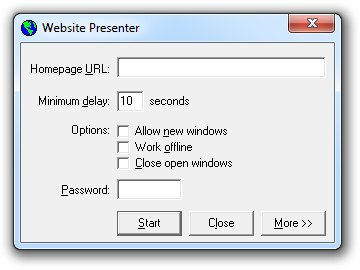
The Website Presenter dialog box
You can also force the browser to work offline, switch off the ability to open new browser windows, and make sure all open browser windows are automatically closed. Additionally, a password can be set to stop visitors from exiting the presentation.
Using the command line
If you don’t want to keep typing in the parameters, you can set up a shortcut pointing to Website Presenter and add the parameters to the command line. To enter the command line, right-click on your shortcut and select Properties. In the Target box you will see the path to the program. You can add up to six parameters to the command line as shown:
URL, minDelay, allowNewWindows, workOffline, closeOpenWindows, pass:password
Here are a few examples:
www.surtell.com, 60, allowNewWindows, closeOpenWindows
This will revert back to ‘www.surtell.com’ after 60 seconds. It will also allow visitors to open new browser windows, and it will also close them automatically when the presentation reverts back to the homepage.
If a file is not found locally or in the browser cache, visitors will be prompted to go on-line (for dial-up access; if you are using an always-on connection this will never appear). Visitors may exit Website Presenter by pressing CTRL-ALT-DEL since a password has not been set.
www.yahoo.com, 120, workOffline, pass:mypass
This will revert back to ‘www.yahoo.com’ after two minutes. Visitors will not be able to open new browser windows via links, and they will not be able to go on-line. Visitors may still use features of Internet Explorer such as saving pages and opening new windows with CTRL-N. A way of disabling these features is discussed later on. The only way to exit from the program will be to enter the password ‘mypass’.
Password protection
Entering a password in the dialog box or using the ‘pass’ parameter in the command line enables the password protection facility. The password must be between 1 and 8 characters in length, and is not case sensitive.
Without password protection, visitors may exit Website Presenter by pressing the CTRL-ALT-DEL keys, or cause it to lose focus by pressing the Start key or the ALT-TAB keys.
With password protection enabled, the above key combinations will have no effect. To exit the program, the user must move the mouse to the bottom left of the screen and hold down the left mouse button whilst moving the mouse. A box will then appear allowing the password to be entered.
If you cannot remember the password, or if Internet Explorer crashes, the only way to return to Windows would be to restart your computer.
Presenting websites
The best way to present a website using Website Presenter is to use it to browse your website live on the Internet. This is fine if you have an Internet connection available, but in many cases you won’t. In this case, getting your presentation to run smoothly may not be so easy because the files needed to browse your website need to be stored offline in Internet Explorer’s cache.
Static websites
If your website uses only static HTML pages, place all the pages in a folder on the hard drive of the presentation computer and set this folder as your homepage in Website Presenter.
If anything on your website is normally sourced from the Internet (e.g. a hit counter), the browser will ask the visitor to log on to the Internet, which is not desirable. To stop this happening, you can select ‘Never dial a connection’ from ‘Tools > Internet Options > Connections’ in Internet Explorer or set the ‘workOffline’ parameter in Website Presenter.
If you do not have the source files of your website, you can use Internet Explorer’s ‘Make available offline’ feature:
- Load the homepage of your website.
- Go to ‘Favorites > Add to Favorites’. Set a title and location for the favorite and click on the ‘OK’ button.
- Go to ‘Favorites > Organize Favorites’. Find the favorite that you created and click it.
- Check the ‘Make available offline’ checkbox that appears and then click on the ‘Properties’ button.
- In the ‘Download’ tab you can tell Internet Explorer how many links deep it should go (maximum three levels), and also whether links outside the website should be followed, which you usually do not want to happen.
- Click on the ‘OK’ button, then on the other ‘OK’ button.
- Internet Explorer will download your website to its cache.
Active websites
If your website uses server-side scripting with dynamic content you have three options:
- Provide the presentation computer with Internet access so that visitors are directly accessing your website. If the connection or server is slow, bear in mind that pages may not appear for some time and that visitors will not see any status messages from Website Presenter.
- Install server software (such as the Personal Web Server in Windows 98) on the presentation computer and set up your website in the same way as it is on the web server. Pages will load more quickly than if you used the previous option and all of the website’s features, such as search facilities, will probably work in the same way as on your live website.
- If you are unable to set up server software on the presentation computer, or you do not have the source files of the website you are presenting, you will need to visit each page on the website once so that each is stored in the Internet Explorer cache. For pages that have embedded links, you can use Internet Explorer’s ‘Make available offline’ feature as described previously. However, this is unlikely to download all pages of an active website since pages on such websites can be created on-the-fly in response to visitor input. One example is a search results page; others would be pages that only appear as a result of JavaScript or VBScript scripting.
If you know how your website works, you can create special server-side and/or client-side scripts that can, for example, load all the pages based on records in any databases such that the pages can be viewed offline from the cache.
For example, this page uses a server-side ASP script to compile a list of members who have models in the South East London Meccano Club website’s model gallery, and then uses client-side VBScript to open a browser window for each member:
<html>

<head>
<meta http-equiv="Content-Language" content="en-gb">
<meta http-equiv="Content-Type" content="text/html; charset=windows-1252">
<title>The SELMEC Website</title>
<script language="vbscript">

dim member(100)

<%
'SELMEC Members-to-HTML Listing Script
'Version 1
'Written by Tim Surtell and downloaded from www.surtell.com
'(C) July 2001 Tim Surtell
'This code may be freely distributed providing that the credit above is retained.

'Setup and open database with query

set rsMembers=Server.CreateObject("adodb.Recordset")
connSELMEC = "DSN=SELMEC"

sqlSELMEC = "SELECT MEMBER_ID FROM MEMBERS_MODELS"

rsMembers.open sqlSELMEC, connSELMEC

memberCounter = 0
lastMemberID  = 0

if not rsMembers.eof then
  do while not rsMembers.eof
    MEMBER_ID = rsMembers("MEMBER_ID")
    if MEMBER_ID <> lastMemberID then
      lastMemberID = MEMBER_ID
      memberCounter = memberCounter + 1
      response.write "member("&memberCounter&") = "&rsMembers("MEMBER_ID") & vbCrLf
    end if
    rsMembers.moveNext
  loop
end if

rsMembers.close

response.write vbCrLf & "totalMembers = " &memberCounter & vbCrLf
%>

for memberCounter = 1 to totalMembers
  set myWindow = window.open("models.asp?ID="&member(memberCounter))
  do while myWindow.document.readyState <> "complete"
    'Wait until window is fully loaded before moving to next page
  loop
  myWindow.close
next
</script>
</head>

<body link="#FF0000" vlink="#FF0000" alink="#FF0000" bgcolor="#F0FFF0">

Opening member windows...

</body>

</html>
You must also set ‘workOffline’ in the Website Presenter dialog box (or on the command line) so that Internet Explorer will not try to retrieve files from the Internet, but will instead get them from the cache. Note that Website Presenter has no control over pages loaded into new browser windows.
Notes and tips
- The computer you are using must have Microsoft Internet Explorer installed.
- If you do not set a password, visitors can still switch to other programs that are running using ALT-TAB or by pressing START. If keyboard input is not required to use your website, it would be a good idea to hide the keyboard and only allow visitors to use the mouse or trackball. That way, visitors don’t have any opportunity to tamper with your computer.
- Visitors can still right-click on the page, where they would be able to see the properties of the page, open links in a new window (if ‘allowNewWindows’ is set) or save pages to disk. It is possible to disable right-clicking in your web pages by inserting the JavaScript below into each page:
<script language="JavaScript">
<!--

//Script to disable right mouse click
//By Maximus (maximus@nsimail.com)
//Adapted by Tim Surtell
//For full source code, visit http://www.dynamicdrive.com

function clickIE()
  {
  if (document.all) {return false;}
  }

function clickNS(e)
  {
  if (document.layers||(document.getElementById&&!document.all))
    {
    if (e.which==2||e.which==3) {return false;}
    }
  }

if (document.layers)
  {document.captureEvents(Event.MOUSEDOWN);document.onmousedown=clickNS;}

else
  {document.onmouseup=clickNS;document.oncontextmenu=clickIE;}

document.oncontextmenu=new Function("return false")

// -->
</script>
- A better solution to the problem above is to set up some Internet Explorer restrictions. These are settings in the Windows Registry that allow certain features of Internet Explorer to be switched off. In this case you want to disable the ‘context menu’, so you need to use the value ‘noBrowserContextMenu’. Whilst you are at it, you can use the ‘noFileNew’ value to disable the opening of new browser windows with CTRL-N. This value does not affect the Website Presenter ‘allowNewWindows’ option. To add these values, run the Registry Editor by going to ‘Start > Run’ and typing ‘regedit’. Open the branches of the tree that appears as follows: ‘HKEY_CURRENT_USER > Software > Policies > Microsoft > Internet Explorer > Restrictions’. If ‘Restrictions’ is not there, add it by going to ‘Edit > New > Key’. Once in the ‘Restrictions’ key, go to ‘Edit > New > DWORD Value’. Enter ‘noFileNew’ for the name and press ‘Enter’. Double-click on the new value and change ‘Value data’ to ‘1’. Do the same for the ‘noBrowserContextMenu’ value. You should find that the changes have the desired effect. If you need to disable these values, just change their ‘Data value’ back to ‘0’. Remember that errors in changing the Windows Registry can cause Windows to misbehave, so it is wise to make a backup of the Registry before making changes. To do this, go to ‘File > Export Registry File’ and make sure the ‘Export range’ is set to ‘All’.
- Internet Explorer will always display a vertical scroll bar, even if the website does not require it. To get around this, you can display your whole website in a frame. Create a file called ‘frameset.htm’ from the code given below. Substitute your website homepage URL where shown and use ‘frameset.htm’ as your homepage in Web Presenter.
<HEAD>
<TITLE>Website Presenter Frameset</TITLE>
</HEAD>

<FRAMESET ROWS="*" NOBORDER>
<FRAME SRC="Your website URL goes here" NAME="webPresenter"
  MARGINWIDTH="10" MARGINHEIGHT="10" SCROLLING="auto" NORESIZE>
</FRAMESET>
- Sometimes, even if ‘workOffline’ is set in Website Presenter, Internet Explorer will refuse to load pages from its cache. If this happens, leave Website Presenter running, then load Internet Explorer and click ‘File > Work Offline’. When you switch back to Website Presenter, it should load pages from the cache. You can then close Internet Explorer (or let Website Presenter do it for you if ‘closeOpenWindows’ is set).
- Why not create a screensaver promoting your website? Introduce your website in large text and invite visitors to press a key to view it. When they do, Website Presenter will appear showing your website’s homepage. I used a software package called Illuminatus Opus to create a screensaver for the South East London Meccano Club website. Another way would be to create a splash page for your website and use this as the Website Presenter homepage.